In today’s interconnected world, a reliable charging cable is more than just an accessory—it’s an essential link ensuring your computers stay powered and productive. With a dizzying array of options, from varying connector types to complex technical specifications, selecting the perfect charging cable can feel daunting. This guide cuts through the confusion, offering clear insights into what makes a quality charging cable, how to match it to your computer’s needs, and the key factors for a durable, efficient, and safe power connection. We’ll explore the critical aspects that transform a simple cable into a powerful lifeline for your digital life, ensuring you make an informed choice that keeps your devices optimally charged and ready for action.
Charging Cables: Overview and Essential Knowledge
Charging cables are fundamental to powering our modern computing devices, facilitating both energy transfer and data exchange. Their evolution has been rapid, moving from basic power delivery to sophisticated systems capable of high-speed charging and data transfer. Understanding the different types and their capabilities is the first step in making an informed decision for your computer.
The most prevalent types of charging cables, especially for computers, are centered around the Universal Serial Bus (USB) standard. While older computers might still utilize USB-A ports for peripherals, modern laptops overwhelmingly rely on USB-C for both power and data.
- USB-A: This is the classic rectangular connector found on one end of most traditional USB cables. While still widely used for connecting peripherals like mice, keyboards, and flash drives to computers, USB-A primarily supports slower charging speeds and limited power output, typically insufficient for direct computer charging.
- USB-C: The latest and most versatile USB connector, USB-C is rapidly becoming the universal standard for laptops, tablets, and many other devices. Its reversible design means there’s no “wrong way” to plug it in, and it supports significant power delivery (USB Power Delivery, or USB PD), high-speed data transfer, and even video output through a single cable.
- USB Power Delivery (USB PD): This is a critical standard that works in conjunction with USB-C. USB PD allows devices to negotiate power levels, enabling faster charging and higher wattage delivery, often up to 100W, and even up to 240W with the latest PD 3.1 Extended Power Range (EPR) specification. This makes USB-C with PD the go-to solution for charging most laptops.
While Micro USB and Lightning cables exist for various other devices, they are not typically used for charging modern computers. The industry trend, driven partly by legislation like in the EU, is moving towards USB-C as the universal charging solution for a wide range of electronics, including laptops.
Key Factors When Choosing a Charging Cable
Selecting the right charging cable for your computer involves more than just picking a compatible connector. Several crucial factors influence a cable’s performance, durability, and suitability for your specific needs. Paying attention to these details can prevent slow charging, premature cable failure, and even potential damage to your devices.
Cable Material and Durability
The physical construction of a charging cable significantly impacts its lifespan and resistance to daily wear and tear. A robust cable can withstand frequent bending, twisting, and pulling, which are common causes of failure.
-
Common Materials:
- TPE (Thermoplastic Elastomer): Often found in original manufacturer cables, TPE is soft and flexible but can degrade over time with exposure to oils, sweat, heat, and UV light, leading to yellowing, hardening, and cracks near the connectors.
- Nylon Braided: These cables feature a woven nylon fiber layer around the internal jacket. They offer excellent tensile strength, pull resistance, and anti-bending properties, making them one of the most durable options available.
- Liquid Silicone: Known for its soft, smooth touch, liquid silicone provides high elasticity and flexibility. It offers good durability and resistance to tangling.
-
Durability Considerations: Beyond the outer sheath material, look for cables with reinforced stress points at the connector ends, as this is where most bending stress occurs. Sturdy internal wiring, often copper, and a solid connector design with metal housings contribute to overall longevity and stable performance. Some high-quality cables may even incorporate aramid fiber (like Kevlar) in their core for added strength. Proper storage, such as loosely coiling rather than tightly wrapping, can also significantly extend a cable’s life.
|
Our Picks for the Best Charging cable in 2026
As an Amazon Associate I earn from qualifying purchases.
|
||
| Num | Product | Action |
|---|---|---|
| 1 | LISEN USB C to USB C Cable, 240W C to C Cable Fast Charging [6.6FT, 2 Pack] Type C Charger Fast Charging USBC to USBC Cable for iPhone 17 16 15 Pro Max iPad MacBook Neo Air Pro Samsung S26 S25 Ultra |
![Check LISEN USB C to USB C Cable, 240W C to C Cable Fast Charging [6.6FT, 2 Pack] Type C Charger Fast Charging USBC to USBC Cable for iPhone 17 16 15 Pro Max iPad MacBook Neo Air Pro Samsung S26 S25 Ultra on Amazon](https://reviewasc.com/wp-content/plugins/amazon-tables/assets/images/buy.png)
|
| 2 | Anker USB C to USB C Cable, Type-C 60W Fast Charging Cable (6 FT, 2Pack) for iPhone 17 Series, iPad mini 6 and More (Black) |
|
| 3 | AINOPE USB to USB C Cable [2-Pack, 6.6ft] 3.1A Type C Charger Fast Charging, Right Angle USB C Cable for iPhone 17 Carplay Cable, Galaxy S10+ S10 S9, Note 10 9, LG V30, Moto, iPhone 16 15 Charger Cord |
|
| 4 | USB Type-C to A Cable 5pack 6ft Braided Fast Charging 3A Quick Charger Cord, 6 Foot Compatible iPhone 17/17 Pro/16e/16/15 Pro Max,Samsung Galaxy S10 S9 S8 Plus, Note 10 9 8, LG V50 V40 G8 G7(Grey) |
|
| 5 | iPhone Charger 3 Pack 10 ft Apple MFi Certified Lightning Nylon Braided Cable Fast Charging Cord Compatible with iPhone 13 12 11 Pro Max XR XS X 8 7 6 Plus SE iPad and More |
|
| 6 | Teeind USB Type C Cable Fast Charging, Tpc001 5 Pack(6Ft 3A) Braided C Charger Cables Compatible with Samsung S10e/note 9/s10/s9/s8 Plus/A80/A50/A20 |
|
| 7 | INIU USB C to USB C Cable, 240W Fast Charging Type C Charger Cord, Braided USBC Phone Charger Cable for iPhone 17 16 Pro Max Samsung S26 S25 Laptops MacBook Air 15 M3 iPad Switch [6.6ft+6.6ft Black] |
|
| 8 | Anker Cable [2 Pack 6ft], USB A to USB C Cable for iPhone 17 Series,Samsung Galaxy S10 S10+, LG V30, Beats Fit Pro and More (Black). |
|
| 9 | Durcord USB C Cable, Upgarded 2Pack 10ft Fast USB Type C Charging Cable for Android/Phone/Pad/Laptop, Type C Charger Braided USB Cable Compatible withi Phone 17/16/15/Pro/Plus/Max/Sam.Sung-Silver |
|
| 10 | LISEN USB C to USB C Cable, 5-Pack [3.3/3.3/6.6/6.6/10FT] for iPhone 17 Charger Cord, 60W C to C Cable Fast Charging for iPad, iPhone 16 15 Pro Max, Galaxy S25/S24 USBC to USBC Cable Gifts for Men |
|
“A common pitfall is underestimating the impact of material on cable longevity. Investing in a nylon braided or liquid silicone cable can save you the frustration and cost of frequent replacements.”
Compatibility and Charging Speed
Ensuring your cable matches your device’s requirements for both connector type and power delivery is paramount for efficient charging.
- Connector Type: For computers, USB-C is the dominant connector. Verify that your computer and charger both have USB-C ports. If you are connecting to an older power adapter, you might need a USB-C to USB-A cable, but be aware this will limit charging speed.
- Power Delivery (PD) Standards: Most modern laptops charge via USB PD, which requires a USB-C cable and a compatible charger.
- USB PD 2.0/3.0: Common, supports up to 100W (20V/5A). Many laptops and high-power devices use these standards.
- USB PD 3.1 (EPR – Extended Power Range): The latest standard, supporting up to 240W (48V/5A). This is essential for power-hungry gaming laptops or high-performance workstations.
- E-Marker Chips: For USB-C cables to deliver more than 60W (specifically 100W or 240W), they must contain an “E-Marker” chip. This chip communicates the cable’s capabilities (power rating, data speed) to the connected devices, ensuring safe and optimal power negotiation. Always check product specifications for E-Marker presence when needing high wattage.
- Data Transfer Speed: While primarily for charging, many computer users also rely on their cables for data transfer. USB-C cables can support various USB versions:
- USB 2.0: Up to 480 Mbps
- USB 3.2 Gen 1: Up to 5 Gbps
- USB 3.2 Gen 2: Up to 10 Gbps
- USB4/Thunderbolt 3/4: Up to 40 Gbps (via USB-C connector)
A cable rated for higher data speeds will typically also support higher power delivery. For instance, Thunderbolt 4 cables (which use the USB-C connector) offer both maximum data transfer and power delivery capabilities.
Cable Length and Design
The length and design of your charging cable can significantly impact its practicality and user experience.
- Length:
- Short (0.3m – 1m / 1ft – 3ft): Ideal for power banks, connecting devices to a nearby laptop, or minimizing clutter on a desk. Less prone to tangling.
- Standard (1.2m – 1.8m / 4ft – 6ft): The most common length, suitable for desk use, charging from a wall outlet, or general portability.
- Long (2m – 3m+ / 6.6ft – 10ft+): Useful when power outlets are far away, such as in a living room or bedroom. Longer cables, however, can sometimes experience slight power loss or reduced data speed, especially if not well-constructed.
- Design Features:
- Angled Connectors: L-shaped or U-shaped connectors can reduce strain on the cable and device port, especially in tight spaces or when using your device while charging.
- LED Indicators: Some cables feature small LED lights to indicate charging status, which can be convenient.
- Magnetic Breakaway: While less common for computer charging due to high power requirements, magnetic tips offer quick attachment and detachment, potentially preventing damage if the cable is accidentally yanked.
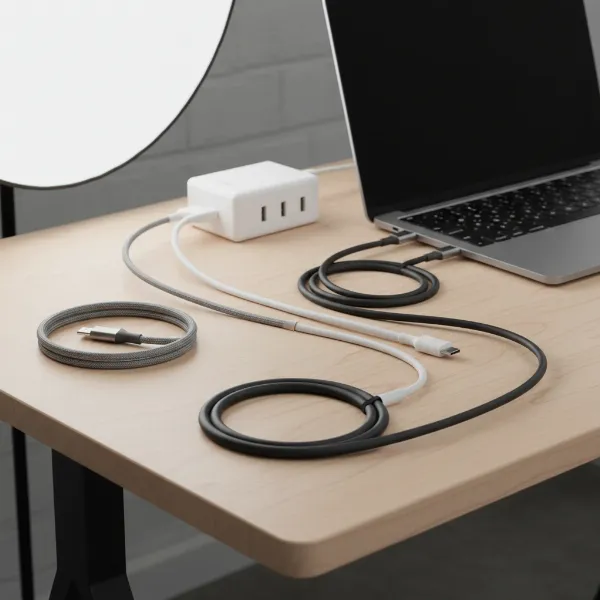 An array of USB-C charging cables of various lengths and materials for computers, showcasing different colors and textures on a clean desktop.
Comparing Common Charging Cable Types
When choosing a charging cable for your computer, the primary considerations revolve around USB-C technology and its varying capabilities. The following table provides a detailed comparison of the main types of USB-C cables you’ll encounter, focusing on their suitability for computer charging and data transfer.
Detailed Comparison Table
| Criteria | Standard USB-C (USB 2.0) | Full-Featured USB-C (USB 3.x/4) | Thunderbolt 3/4 (USB-C connector) |
|---|---|---|---|
| Primary Use | Basic charging, slow data transfer | Fast charging, high-speed data, video | Ultra-fast data, high-power charging, multi-monitor setups, eGPUs |
| Max Power Delivery | Up to 60W (20V/3A) | Up to 100W (20V/5A); up to 240W with PD 3.1 (EPR) | Up to 100W (20V/5A); up to 240W with PD 3.1 (EPR) |
| Max Data Transfer | 480 Mbps (USB 2.0) | Up to 20 Gbps (USB 3.2 Gen 2×2); up to 40 Gbps (USB4) | Up to 40 Gbps |
| Video Output | No | Yes (DisplayPort Alt Mode, HDMI Alt Mode) | Yes (DisplayPort Alt Mode, multiple displays) |
| Requires E-Marker | Not for 60W; Yes for >60W/100W | Yes for >60W/100W/240W | Yes for all features and power delivery |
| Typical Cost | Low | Medium | High |
| Compatibility | All USB-C devices | All USB-C devices (features depend on device support) | Thunderbolt-enabled devices for full performance; works as full-featured USB-C otherwise |
This table clarifies that while all these cables share the physical USB-C connector, their internal capabilities differ significantly, particularly regarding power and data throughput. For optimal computer performance, especially with modern laptops, a full-featured USB-C or Thunderbolt cable is often the best choice.
Comprehensive Buying Guide for Charging Cables
Navigating the market for charging cables requires a methodical approach to ensure you get a product that meets your needs and offers long-term reliability. This buying guide outlines the critical steps to make an informed purchase.
Determine Your Usage Needs
Before diving into product specifications, assess how you primarily use your computer and what you expect from a charging cable.
- Device Compatibility: What type of computer do you have? Most modern laptops use USB-C. Check the specific wattage requirements of your laptop’s charger. A 65W laptop needs at least a 65W-capable cable and charger. Using a lower wattage cable might result in slow or no charging for your computer.
- Charging Speed: Do you need fast charging for a high-power laptop, or is standard charging sufficient for a less demanding device? If fast charging (e.g., 100W or 240W) is essential, ensure the cable supports the corresponding USB Power Delivery (PD) standard and has an E-Marker chip.
- Data Transfer & Video: Do you also plan to use the cable for connecting external displays, transferring large files, or connecting to docks? If so, opt for a full-featured USB-C cable (USB 3.2 Gen 2 or USB4) or a Thunderbolt cable for superior data and video capabilities.
- Cable Length: Consider where you’ll be using the cable most often. A 1.2-meter (4-foot) cable is standard, but a longer 2-meter (6.6-foot) cable might be necessary for flexible placement, while a shorter cable is perfect for travel.
Research Reputable Brands
The market is flooded with charging cables, but not all are created equal. Sticking to well-known and reputable brands often ensures higher quality, better performance, and reliable customer support.
- Leading Brands: Companies like Anker, Belkin, UGREEN, and Nekteck are widely recognized for producing high-quality charging accessories, including cables. These brands typically invest in research and development, use durable materials, and adhere to safety standards.
- Quality Assessment: Look for brands with positive reviews regarding cable durability, charging consistency, and customer service. While original manufacturer cables can be reliable, third-party options from trusted brands often offer better value and innovative features.
Verify Technical Specifications and Safety Certifications
This is arguably the most critical step to ensure both performance and safety.
- Power Output (Wattage): Always match or exceed your device’s charging wattage requirement. For example, if your laptop comes with a 90W charger, your cable should at least support 100W PD to ensure optimal performance.
- USB Version: Check if the cable supports the USB version you need (e.g., USB 3.2 Gen 2 for 10Gbps data, USB4 for 40Gbps). This is especially important for data-intensive tasks or video output.
- E-Marker Chip: For any USB-C cable claiming to support 100W or 240W Power Delivery, verify that it explicitly mentions possessing an E-Marker chip. This is a non-negotiable requirement for high-wattage charging.
- Safety Certifications: Look for recognized safety certifications to ensure the cable meets established quality and safety standards.
- USB-IF Certification: This is the most crucial certification for USB cables. It indicates that the cable has been tested by the USB Implementers Forum for charging stability, safe data transfer, and adherence to USB standards.
- UL/ETL (USA/Canada): These marks signify that the product has been tested for safety standards, particularly concerning electrical components and fire hazards.
- CE (Europe): Indicates compliance with European Union regulations for health, safety, and environmental protection.
- RoHS: Ensures the cable does not contain harmful levels of hazardous materials.
- FCC (USA): Pertains to electromagnetic compatibility, ensuring the cable doesn’t cause harmful interference.
While some certifications like MFi are specific to Apple devices (mainly Lightning, though some USB-C accessories also get MFi), for general computer charging via USB-C, USB-IF, UL/ETL, CE, and RoHS are the primary indicators of a reliable and safe product.
Top Charging Cables for Computers Today
The market for high-quality charging cables is competitive, with several brands offering excellent products that balance performance, durability, and value. When seeking the best for your computer, consider models known for robust construction and adherence to the latest USB PD standards.
Many highly-rated cables come from brands like Anker, Belkin, and UGREEN. For instance, the Anker PowerLine III USB-C to USB-C cable is often recommended for its 100W power delivery and flexible yet durable construction. Similarly, Belkin’s BoostCharge 240-watt charging cable stands out for supporting the highest USB PD rates, making it suitable for even the most power-hungry laptops. For those needing ultra-high performance that includes rapid data transfer and video output, Cable Matters USB4 cables are a strong contender, offering 40Gbps speeds alongside 100W charging, though they tend to be shorter.
When selecting, prioritize cables that explicitly state their power delivery capacity (e.g., 100W, 240W) and, if applicable, their USB data standard (e.g., USB 3.2 Gen 2, USB4). Cables with nylon braiding or liquid silicone jackets are often preferred for their enhanced durability over standard TPE, reducing the likelihood of fraying or internal wire damage over time. Always check the reviews from other computer users and ensure the cable matches your specific laptop’s wattage requirements to guarantee efficient and safe charging.
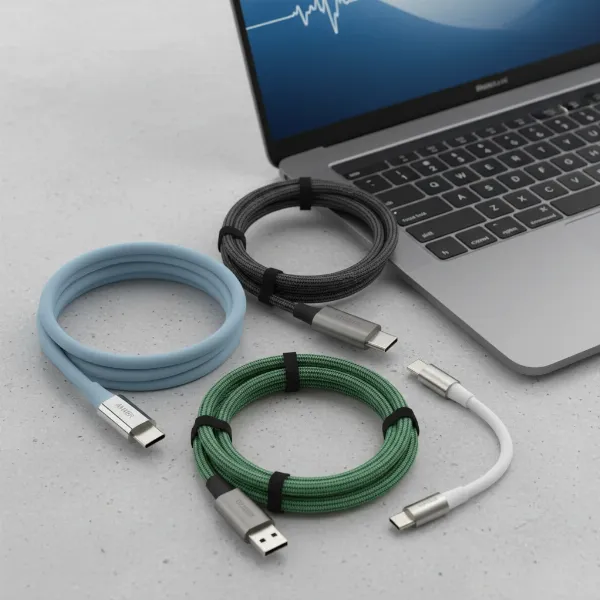 A close-up of several top-rated USB-C charging cables from various brands, neatly coiled and displayed next to a modern laptop, highlighting their robust construction and premium feel.
Conclusion
Choosing the right charging cable for your computers is an investment in both your device’s longevity and your own productivity. The landscape of charging technology, particularly with the widespread adoption of USB-C and Power Delivery, offers incredible versatility but also demands careful consideration. By prioritizing factors such as the cable’s material for durability, ensuring compatibility with your computer’s wattage and data speed requirements, and verifying crucial safety certifications, you can confidently select a cable that performs optimally and stands the test of time.
Remember, a high-quality charging cable is not merely a utilitarian item; it is a vital component of your computing experience, delivering consistent power and facilitating seamless data flow. What specific feature of a charging cable do you find most challenging to assess when making a purchase decision?
Frequently Asked Questions
What is the maximum wattage a USB-C charging cable can deliver?
A standard USB-C charging cable typically supports up to 60W (20V/3A). However, with an E-Marker chip, full-featured USB-C cables can deliver up to 100W (20V/5A) using USB PD 2.0/3.0, and the latest USB PD 3.1 Extended Power Range (EPR) specification can push this limit to an impressive 240W (48V/5A) with compatible cables and devices.
How do I know if a USB-C cable supports fast charging for my laptop?
To determine if a USB-C cable supports fast charging for your laptop, check its specifications for “USB Power Delivery” (USB PD) and the maximum wattage it can handle (e.g., 60W, 100W, 240W). Ensure this wattage matches or exceeds your laptop’s charging requirements. For power above 60W, verify the cable has an E-Marker chip, usually mentioned in the product description.
Is it safe to use a third-party charging cable for my computer?
Yes, it is generally safe to use third-party charging cables for your computer, provided they are from reputable brands and have appropriate safety certifications like USB-IF, UL, CE, and RoHS. These certifications indicate that the cable meets industry safety and performance standards. Avoid generic, uncertified cables, as they may not provide stable power or adequate safety features.
What is an E-Marker chip in a USB-C cable?
An E-Marker (Electronically Marked) chip is a small integrated circuit embedded in certain USB-C cables. It communicates the cable’s capabilities, such as its supported power delivery (wattage), data transfer speed, and other features, to the connected devices. This chip is essential for USB-C cables to safely deliver power above 60W (e.g., 100W or 240W) and to ensure proper function with high-performance devices.
Does cable length affect charging speed or performance?
Yes, cable length can subtly affect charging speed and performance, especially with lower-quality or very long cables. Longer cables generally have higher electrical resistance, which can lead to a slight voltage drop and reduced power delivery. For high-wattage computer charging, it’s advisable to use a good quality, shorter cable (1-2 meters) if possible, but reputable brands design longer cables to mitigate these effects.
What is the difference between a USB-C cable and a Thunderbolt cable?
Both USB-C and Thunderbolt cables use the same physical USB-C connector, but Thunderbolt cables offer significantly higher performance. Thunderbolt 3/4 cables (using the USB-C connector) support up to 40 Gbps data transfer, multi-display output, and external GPU connectivity, in addition to up to 100W (or 240W with PD 3.1) power delivery. A standard full-featured USB-C cable typically supports lower data speeds (up to 20 Gbps) and often fewer advanced features, though it still provides robust charging.