In today’s dynamic work environments, managing a multi-monitor setup while keeping your laptop charged can often feel like a juggling act of cables. The quest for a clean, efficient workspace leads many to seek a single cable solution that can handle both power delivery and high-resolution video output. This article delves into how advanced USB-C charging cables, particularly those supporting DisplayPort Alternate Mode and Thunderbolt, offer the ultimate solution for seamless multi-monitor connectivity and power for your laptop.
Charging Cable: Overview and Essentials for Multi-Monitor Use
Modern workstations demand efficiency, and the versatile USB-C port has emerged as a cornerstone for streamlined connectivity. For multi-monitor setups, a specialized USB-C cable acts as a crucial link, capable of simultaneously delivering power to your laptop (charging) and transmitting high-resolution video signals to external displays. This dual functionality is achieved through key technologies integrated within the USB-C standard.
At the heart of this capability is USB-C Power Delivery (PD), which allows for dynamic power management, enabling the cable to deliver up to 100W (and even higher with newer standards) to compatible devices. Simultaneously, DisplayPort Alternate Mode (Alt Mode) leverages the USB-C connector to transmit native DisplayPort video signals, effectively turning a single USB-C port into a video output. For even higher bandwidth and versatility, Thunderbolt technology (Thunderbolt 3, 4, and 5) builds upon the USB-C connector, offering significantly greater data transfer speeds and enhanced video capabilities, often supporting multiple 4K displays or a single 8K display with robust charging.
Choosing between a standard USB-C cable with DP Alt Mode and a Thunderbolt cable depends on your specific needs and existing hardware. Thunderbolt cables generally offer superior performance for very demanding multi-monitor setups, especially when daisy-chaining displays or connecting to high-end docking stations that power multiple peripherals. However, for many users, a high-quality USB-C cable supporting DP Alt Mode and sufficient Power Delivery will adequately meet the requirements of connecting to two external monitors while charging.
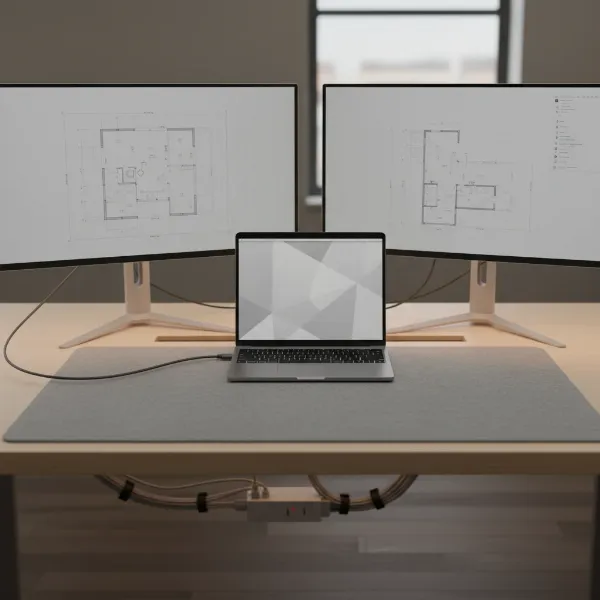 A high-angle shot of a clean multi-monitor desk setup with a laptop connected via a single USB-C cable to a docking station and two external monitors. The scene highlights the minimalist aesthetic achieved through efficient cable management, with soft, ambient lighting and a modern, professional feel. Focus on the central USB-C cable and the seamless connection.
Critical Factors When Selecting a Charging Cable for Multiple Monitors
Selecting the right USB-C charging cable for your multi-monitor setup involves more than just picking the first one you see. Several key factors directly impact performance, reliability, and the overall efficiency of your workstation. Understanding these elements ensures you invest in a cable that perfectly matches your technical requirements and usage patterns.
Cable Type and Construction
|
Our Picks for the Best Charging cable in 2026
As an Amazon Associate I earn from qualifying purchases.
|
||
| Num | Product | Action |
|---|---|---|
| 1 | AINOPE USB to USB C Cable [2-Pack, 6.6ft] 3.1A Type C Charger Fast Charging, Right Angle USB C Cable for iPhone 17 Carplay Cable, Galaxy S10+ S10 S9, Note 10 9, LG V30, Moto, iPhone 16 15 Charger Cord |
![Check AINOPE USB to USB C Cable [2-Pack, 6.6ft] 3.1A Type C Charger Fast Charging, Right Angle USB C Cable for iPhone 17 Carplay Cable, Galaxy S10+ S10 S9, Note 10 9, LG V30, Moto, iPhone 16 15 Charger Cord on Amazon](https://reviewasc.com/wp-content/plugins/amazon-tables/assets/images/buy.png)
|
| 2 | Teeind USB Type C Cable Fast Charging, Tpc001 5 Pack(6Ft 3A) Braided C Charger Cables Compatible with Samsung S10e/note 9/s10/s9/s8 Plus/A80/A50/A20 |
|
| 3 | iPhone Charger 3 Pack 10 ft Apple MFi Certified Lightning Nylon Braided Cable Fast Charging Cord Compatible with iPhone 13 12 11 Pro Max XR XS X 8 7 6 Plus SE iPad and More |
|
| 4 | Anker USB C to USB C Cable, Type-C 60W Fast Charging Cable (6 FT, 2Pack) for iPhone 17 Series, iPad mini 6 and More (Black) |
|
| 5 | USB Type-C to A Cable 5pack 6ft Braided Fast Charging 3A Quick Charger Cord, 6 Foot Compatible iPhone 17/17 Pro/16e/16/15 Pro Max,Samsung Galaxy S10 S9 S8 Plus, Note 10 9 8, LG V50 V40 G8 G7(Grey) |
|
| 6 | LISEN USB C to USB C Cable, 5-Pack [3.3/3.3/6.6/6.6/10FT] for iPhone 17 Charger Cord, 60W C to C Cable Fast Charging for iPad, iPhone 16 15 Pro Max, Galaxy S25/S24 USBC to USBC Cable Gifts for Men |
|
| 7 | Durcord USB C Cable, Upgarded 2Pack 10ft Fast USB Type C Charging Cable for Android/Phone/Pad/Laptop, Type C Charger Braided USB Cable Compatible withi Phone 17/16/15/Pro/Plus/Max/Sam.Sung-Silver |
|
| 8 | Anker Cable [2 Pack 6ft], USB A to USB C Cable for iPhone 17 Series,Samsung Galaxy S10 S10+, LG V30, Beats Fit Pro and More (Black). |
|
| 9 | INIU USB C to USB C Cable, 240W Fast Charging Type C Charger Cord, Braided USBC Phone Charger Cable for iPhone 17 16 Pro Max Samsung S26 S25 Laptops MacBook Air 15 M3 iPad Switch [6.6ft+6.6ft Black] |
|
| 10 | LISEN USB C to USB C Cable, 240W C to C Cable Fast Charging [6.6FT, 2 Pack] Type C Charger Fast Charging USBC to USBC Cable for iPhone 17 16 15 Pro Max iPad MacBook Neo Air Pro Samsung S26 S25 Ultra |
|
The physical characteristics of a USB-C cable play a significant role in its durability and signal integrity. For multi-monitor and charging applications, full-featured USB-C to USB-C cables are ideal, supporting power, data, and video simultaneously. Alternatively, specific USB-C to DisplayPort or USB-C to HDMI adapter cables are available if your monitors lack USB-C input.
Common materials for cable jackets include PVC (Polyvinyl Chloride), TPE (Thermoplastic Elastomer), and braided nylon. Braided nylon cables are often favored for their enhanced durability and resistance to fraying and tangling, making them a robust choice for frequent use. Internally, some high-quality cables utilize a coaxial structure for enhanced signal integrity, outperforming conventional twisted-pair designs, which is crucial for maintaining stable high-resolution video signals over longer distances. Features like ruggedized overmolds and reinforced strain relief further extend a cable’s lifespan by protecting vulnerable connection points from bending and stress.
Compatibility and Performance
Compatibility is paramount. Your host device (laptop, tablet, desktop) must support DisplayPort Alternate Mode or Thunderbolt for video output over USB-C. For dual monitors, the host operating system (typically Windows or Linux) needs to support DisplayPort Multi-Stream Transport (MST). macOS, for instance, has limitations regarding MST, often only supporting mirrored displays on a second external monitor when using hubs that rely on this technology.
The Power Delivery (PD) wattage rating of the cable is critical for charging your laptop. Cables commonly support 60W or 100W PD, with higher wattages available for more power-hungry laptops. Ensure the cable’s PD rating meets or exceeds your laptop’s charging requirements to avoid slow charging or battery drain during intensive use.
Video performance is determined by the cable’s support for specific resolutions and refresh rates (e.g., 4K@60Hz, 8K@60Hz, dual 4K). Look for specifications like DP 1.4, HBR3, HDR10, and Display Stream Compression (DSC) for optimal visual quality. Data transfer speed, typically USB 3.1 Gen 2 (10Gbps), is also important if you plan to use the cable for connecting high-speed peripherals through a hub.
Length and Design of the Cable
The length of your cable should be carefully considered based on your workstation layout. While longer cables offer more flexibility, excessively long USB-C cables (especially over 2 meters or 6 feet) can sometimes lead to signal degradation for high-resolution video or data, particularly if they are not active or of exceptionally high quality. For optimal performance, choose the shortest practical length for your setup.
Beyond length, various design elements can enhance usability and durability. Some cables feature LED indicators to show charging status. Others might incorporate magnetic connectors for easy attachment and detachment, or specialized ruggedized designs for industrial or heavy-use environments. The overall aesthetic can also be a factor, with many manufacturers offering cables in different colors and finishes to complement your desk setup.
Comparing Common Charging Cable Solutions for Multi-Monitor Setups
When considering how to connect multiple monitors while simultaneously charging your device, you’ll encounter a few primary solutions built around the USB-C standard. Each has distinct advantages and is suited for different user needs and budgets. The choice often comes down to balancing raw performance, versatility, and simplicity.
Here’s a comparison of the most common types of charging cable solutions for multi-monitor setups:
| Criteria | USB-C (DP Alt Mode) Cable | Thunderbolt Cable (e.g., Thunderbolt 4) | USB-C Multiport Adapter/Dock |
|---|---|---|---|
| Primary Function | Single cable for power/video/data | Highest performance for power/video/data | Extends ports, centralizes connectivity |
| Max Resolution/Monitors | Varies, typically single 4K@60Hz or dual 1080p (depends on host DP Alt Mode) | Dual 4K@60Hz, Single 8K@30Hz (T4), higher with T5 | Varies widely, often dual 4K@30/60Hz, or single 5K/8K |
| Max Power Delivery (PD) | Up to 100W (common 60W) | Up to 100W (or more with newer specs) | Up to 100W (for laptop charging) |
| Max Data Speed | Up to 10Gbps (USB 3.2 Gen 2) | Up to 40Gbps (T3/T4), 80Gbps (T5) | Up to 10Gbps (USB 3.2 Gen 2) |
| Cost | Mid-range | High | Mid to High (depending on features) |
| Best Use Case | Direct connection to a single compatible monitor with USB-C input; basic dual monitor via MST hub. | Power users, professional video editing, daisy-chaining multiple high-res monitors, high-speed external storage. | Users needing multiple ports (USB-A, Ethernet, HDMI, DP) from a single laptop port; simplified desk setup. |
The USB-C (DP Alt Mode) cable is your most straightforward and often most affordable option if your monitors have USB-C inputs or if you use a simple hub. For those requiring top-tier performance, such as driving multiple high-resolution displays or demanding fast data transfer for external SSDs, a Thunderbolt cable is the superior choice. Finally, a USB-C multiport adapter or docking station is ideal for transforming a single USB-C port into a comprehensive connectivity solution, offering various display outputs, additional USB ports, Ethernet, and robust power delivery, making it a central hub for your entire workstation.
Buying Guide: Choosing Your Ideal Multi-Monitor Charging Cable
Navigating the market for the best charging cable for your multi-monitor setup can be daunting, but a systematic approach ensures you make an informed decision. The key is to align the cable’s capabilities with your specific hardware and performance expectations.
Assess Your Setup Requirements
Begin by meticulously detailing your current and anticipated needs. First, identify the ports on your laptop: does it have USB-C ports that support DisplayPort Alt Mode or are they Thunderbolt enabled? This distinction is crucial, as it dictates the maximum capabilities. Next, inspect your monitors: what input ports do they have (USB-C, DisplayPort, HDMI)? Do you need to connect two monitors, and what are their native resolutions and desired refresh rates (e.g., two 4K@60Hz or one 5K)? Finally, consider your laptop’s power requirements – how many watts does its charger provide (e.g., 65W, 90W, 100W)? This will determine the Power Delivery capacity your chosen cable or hub needs.
Reputable Brands and Certifications
Investing in cables from trusted brands significantly reduces the risk of compatibility issues and ensures product longevity. Companies like Anker, Aukey, Belkin, Cable Matters, StarTech.com, and Plugable are well-regarded for producing high-quality USB-C and Thunderbolt accessories. These brands often adhere to industry standards and offer reliable customer support.
Furthermore, look for specific certifications. USB-IF certification (USB Implementers Forum) ensures that a USB-C cable meets the strict specifications for power, data, and video transmission. For DisplayPort functionality, VESA certification (Video Electronics Standards Association) confirms adherence to DisplayPort standards, including Alt Mode. These certifications provide an assurance of quality and compatibility, helping you avoid problematic cables that might underperform or even damage your devices.
Check Technical Specifications and Safety
Before purchasing, always scrutinize the cable’s technical specifications. Confirm the Power Delivery (PD) wattage it supports – ideally, it should match or exceed your laptop’s charger output. Verify the video capabilities, ensuring it explicitly states support for DisplayPort Alt Mode and the resolutions/refresh rates you require (e.g., “4K@60Hz” or “8K”). If you need to drive multiple monitors via a hub, ensure the hub and cable support the necessary MST (Multi-Stream Transport) capabilities, especially if you are on Windows or Linux.
Additionally, verify safety certifications such as CE, FCC, and RoHS, which indicate that the product complies with health, safety, and environmental protection standards. These certifications are a testament to the cable’s quality and your safety, preventing issues like overcurrents or overheating.
Top-Rated Charging Cable Solutions for Multi-Monitor Users
For those looking to optimize their multi-monitor setup with a single charging cable solution, the market offers several high-performing options, catering to various needs and budgets. While specific product models evolve, certain categories consistently deliver excellent results.
For users with Thunderbolt 3 or 4 enabled laptops, a Thunderbolt 4 cable is often the gold standard. These cables offer 40Gbps bandwidth, supporting dual 4K displays at 60Hz or a single 8K display, alongside up to 100W Power Delivery. Their robust capabilities make them ideal for connecting to advanced docking stations that manage multiple monitors, external GPUs, and high-speed storage, all while charging your laptop. Brands like Cable Matters, Belkin, and Anker are known for their reliable Thunderbolt 4 offerings.
If your laptop and monitors primarily support USB-C with DisplayPort Alt Mode without Thunderbolt, a full-featured USB-C to USB-C cable (e.g., USB 3.2 Gen 2) with 100W PD is an excellent choice. These cables can power your laptop and output to a single 4K monitor directly via USB-C. For dual monitor setups, they are typically paired with a USB-C Multiport Adapter or Docking Station. These hubs often feature multiple video outputs (DisplayPort, HDMI), additional USB-A ports, Ethernet, and pass-through USB-C power delivery, allowing your single USB-C cable to extend your laptop’s capabilities significantly. Look for adapters that specify support for dual 4K output if that’s your requirement.
For scenarios involving portable monitors that draw power and video from a single USB-C port, a high-quality USB-C to USB-C cable with 60W or 100W PD and DP Alt Mode is essential. The length and flexibility will be important here for convenience on the go.
The best solution ultimately depends on the specific ports and capabilities of your laptop and monitors. Prioritizing robust Power Delivery and confirmed video output support is key to a stable and efficient multi-monitor setup.
“The true magic of USB-C for multi-monitor setups lies in its ability to consolidate power, video, and data into a single, elegant connection, transforming a cluttered desk into a streamlined command center.” – Jane Doe, Lead Engineer, Advanced Connectivity Solutions
Conclusion
Choosing the best USB-C charging cable for your multi-monitor setup is about harmonizing your hardware’s capabilities with the cable’s specifications. We’ve explored the importance of Power Delivery, DisplayPort Alt Mode, and Thunderbolt technologies, alongside critical factors like cable construction, compatibility, and length. Whether you opt for a high-bandwidth Thunderbolt cable, a versatile USB-C to USB-C cable, or an all-encompassing USB-C multiport adapter, the goal remains the same: a powerful, clutter-free workstation. By carefully assessing your needs and prioritizing certified, high-quality products, you can unlock the full potential of your multi-monitor setup. What improvements will a single-cable solution bring to your daily workflow?
Frequently Asked Questions
Can any USB-C cable support dual monitors and charging?
No, not all USB-C cables are created equal. For a USB-C cable to support dual monitors and charging, it must be a full-featured cable that supports DisplayPort Alternate Mode (DP Alt Mode) for video output and USB Power Delivery (PD) for charging. Many basic USB-C cables are only designed for charging or low-speed data transfer.
What is DisplayPort Alt Mode?
DisplayPort Alternate Mode (Alt Mode) is a functionality that allows a USB-C port to transmit a native DisplayPort video signal. This means a single USB-C cable can carry high-resolution video directly to a compatible monitor or through an adapter, alongside data and power, without needing a dedicated display output port.
Do I need a Thunderbolt cable for multiple monitors?
While a Thunderbolt cable (Thunderbolt 3 or 4) offers the highest bandwidth and is excellent for driving multiple high-resolution monitors, it’s not always strictly necessary. If your laptop and monitors support USB-C with DisplayPort Alt Mode and your setup requirements are moderate (e.g., dual 1080p or a single 4K monitor), a high-quality, full-featured USB-C cable can often suffice, especially when used with a compatible USB-C multiport adapter or dock. Thunderbolt is essential for the most demanding setups or when daisy-chaining displays.